Create or claim your Google Business Profile now, then verify it. Customers can't find or contact your business through Google Search or Maps until verification is complete. The fast path is simple: sign into a Google Account, go to business.google.com/add, pick the right category, set your address or service area, and verify. Once that's done, fill in hours, phone, website, photos, and services.
TL;DR:
- Verifying your Google Business Profile by mail or phone is crucial, as your business cannot be found or contacted on Google Search or Maps before verification.
- Use your business's exact name, address, and phone number consistently online to prevent delays and avoid suspensions caused by mismatched information.
- After verification, optimizing with accurate hours, specific services, high-quality photos, and regular posts significantly improves visibility and customer engagement.
- Claim existing profiles instead of creating duplicates to avoid suspension, and manage access roles carefully to maintain control and update your profile regularly.
- Fix common issues like unreceived postcards, suspensions, or duplicate listings promptly by following Google's support procedures to keep your profile working effectively.
Table of Contents
- Google Business Profile Setup: A Step-by-Step Walkthrough
- How Does Verification Work?
- What Should You Optimize After Verification?
- Claiming an Existing Profile vs. Creating a New One
- Managing Access and Keeping Your Profile Current
- Quick Fixes for Common Setup Problems
- Why Your Website Still Matters for Local Search
- Setup Mistakes Small Businesses Keep Making
- Where to Go for Official Help
- Sources
Google Business Profile Setup: A Step-by-Step Walkthrough
Getting your business live on Google takes about 20 minutes if you have your details ready. Here's the order that actually works.
- Sign in or create a Google Account. Use a company email address rather than a personal Gmail account whenever possible. This keeps ownership tied to the business, not to one person's inbox, which matters later if you hire staff or sell the company.
- Go to business.google.com/add and search your business name first. Before creating anything, check whether a profile already exists. If it does, claim it instead of starting fresh. Creating a second listing for a business Google already knows about is one of the fastest ways to trigger a suspension.
- Enter your exact business name. Match your signage and legal name. Don't stuff keywords into the name field ("Joe's Plumbing Fast Same Day Service") — Google penalizes this, and it looks unprofessional to customers anyway.
- Pick your primary category carefully. This single field influences which searches you show up for more than almost anything else on the profile. Choose the most specific option available. "Italian Restaurant" beats "Restaurant." "Divorce Lawyer" beats "Attorney." You can add secondary categories later, but the primary one carries the most weight.
- Decide: storefront or service area. If customers visit you, enter your street address. If you travel to them (plumbers, mobile groomers, consultants), choose service-area business and hide your address. Google's own guidance suggests keeping service boundaries within roughly two hours' driving time from your base. Stretch further and you risk showing up in searches you can't realistically serve.
- Add phone, website URL, hours, and opening date. Link a specific page on your site (not just the homepage) if you have one built for a particular service or location.
- List your core services so Google understands what you actually do, then prepare for verification.
Pro Tip: Write your business name and address exactly the same way everywhere online, including your website footer and any directory listings. Inconsistent formatting between "123 Main St." and "123 Main Street" confuses Google's matching system and can delay verification.
How Does Verification Work?
Verification isn't optional paperwork. It's the gate between having a profile and actually appearing anywhere on Google. Google confirms customers cannot find or interact with your business until this step is finished, no matter how complete the rest of your profile looks.
You'll typically be offered one of these methods, depending on your business type and location:
- Postcard by mail — the most common method, usually arriving within five to fourteen days with a code you enter online.
- Phone verification — an automated call or text with a code, available for many eligible businesses.
- Email verification — offered occasionally for certain account types.
- Instant verification — available if you've already verified the same business in Google Search Console.
- Bulk verification — for businesses managing ten or more locations at once.
If your postcard never shows up, don't just wait. Request another one, and double check your address matches your mail carrier's records exactly. Suite numbers and unit letters trip this up constantly. If repeated attempts fail, Google's support channels can escalate to phone or video verification in some cases.
What Should You Optimize After Verification?
A verified but empty profile still underperforms. Google's own product guidance points to photos, accurate hours, regular posts, and review responses as the biggest levers for standing out in Search and Maps. Work through this list in order:
- Confirm your name, address, and phone number (NAP) match your website exactly.
- Choose every relevant secondary category, not just the primary one.
- Write a description under 750 characters that mentions what you do and where, without keyword stuffing.
- Add specific services with pricing where it makes sense. Vague menus lose to specific ones.
- Upload a logo, exterior shot, interior shot, and product or team photos. Set a strong cover photo. Profiles with more photos consistently get more direction requests and clicks.
- Turn on booking or messaging if your business type supports it.
- Post updates or offers at least monthly.
- Ask satisfied customers for reviews, and respond to every review, good or bad, within a few days.
Pro Tip: Respond to a negative review calmly and specifically. A thoughtful reply to a one-star review often does more for trust than another five-star review would.
Claiming an Existing Profile vs. Creating a New One
Search Google Maps for your business name before you touch the "add business" button. If a listing already exists, even unverified, claim it rather than building a duplicate.
- Search your business name and address on Google Maps.
- If you find an unclaimed listing, select "Claim this business" and follow the verification prompts.
- If someone else already manages it, use the "Request access" option to ask the current owner to transfer or share ownership.
- Google permits only one profile per business per metropolitan area. Duplicate listings risk suspension, not just confusion.
Managing Access and Keeping Your Profile Current
Profiles support different access levels: primary owner (full control, including deletion rights), owner (nearly full control), and manager (can edit most fields but not remove the business or change ownership). Adding a team member or agency just requires their email address and an assigned role.
- Keep primary ownership with someone permanent in the business, not a contractor who might leave.
- Grant managers access for day-to-day updates like hours and posts.
- Schedule a monthly check: update seasonal hours, add new photos, and post at least one update.
- Remove access immediately when an employee or agency relationship ends.
Quick Fixes for Common Setup Problems
Most issues fall into three buckets, and each has a fast fix:
- Postcard never arrived: request a new one and verify your address formatting matches USPS or your local postal service exactly.
- Profile suspended: read the suspension notice carefully to identify the policy violation, gather proof of business legitimacy (utility bill, business license), and file an appeal through Google's support form.
- Duplicate listings: request a merge or removal through Google Business Profile support, attaching proof of ownership for the profile you want to keep.
Pro Tip: Screenshot your profile's information before requesting any support ticket. If a merge accidentally wipes your reviews, you'll want evidence of what existed beforehand.
Why Your Website Still Matters for Local Search
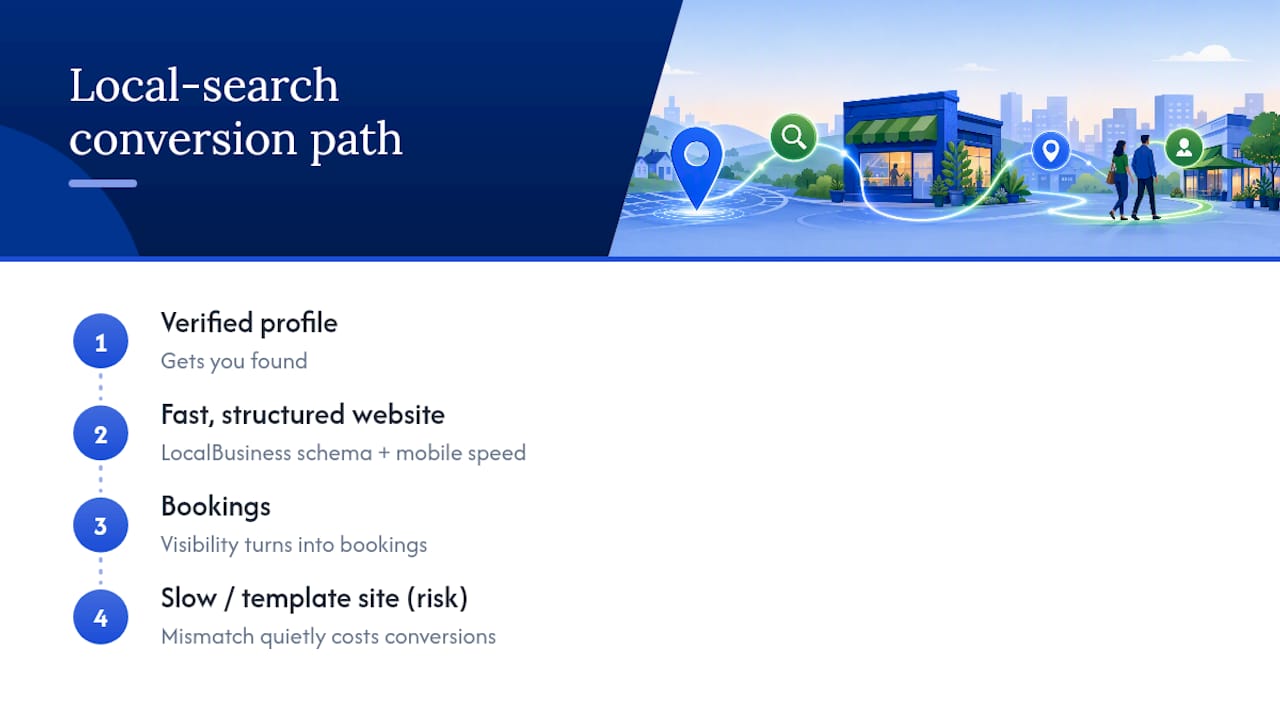
A verified profile gets you found. A fast, well-structured website is what turns that visibility into bookings. At Nordicweb, we build service pages with LocalBusiness schema markup and clean mobile speed, so the site backs up what your profile promises. If your current site is slow or template-built, that mismatch quietly costs you conversions Google can't fix on its own.
Setup Mistakes Small Businesses Keep Making
The pattern we see most often: business owners skip verification, leave photos blank, or let their NAP drift out of sync with their website. Fix those three things first. Everything else on a Business Profile is secondary.
— Max
Where to Go for Official Help
For account creation, use business.google.com/add. For ownership transfers or suspension appeals, start at Google's support hub.
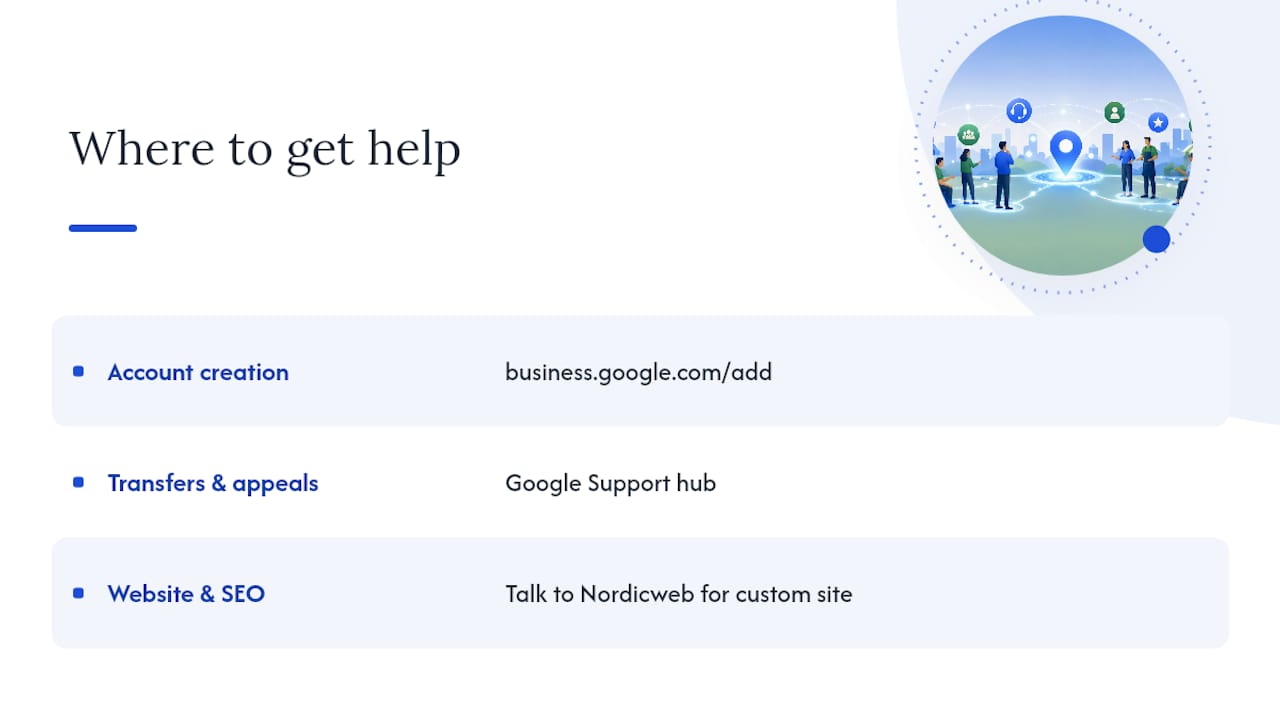
Ready to pair a verified profile with a website built to convert? Talk to Nordicweb about a custom site with technical SEO built in from day one.
Sources
- Guide: How to set up and manage your Google Business Profile — University of New Hampshire Extension